Guide
Kove on Android
Widgets, app shortcuts, and App Lock: how to keep your budget one glance away on Android.

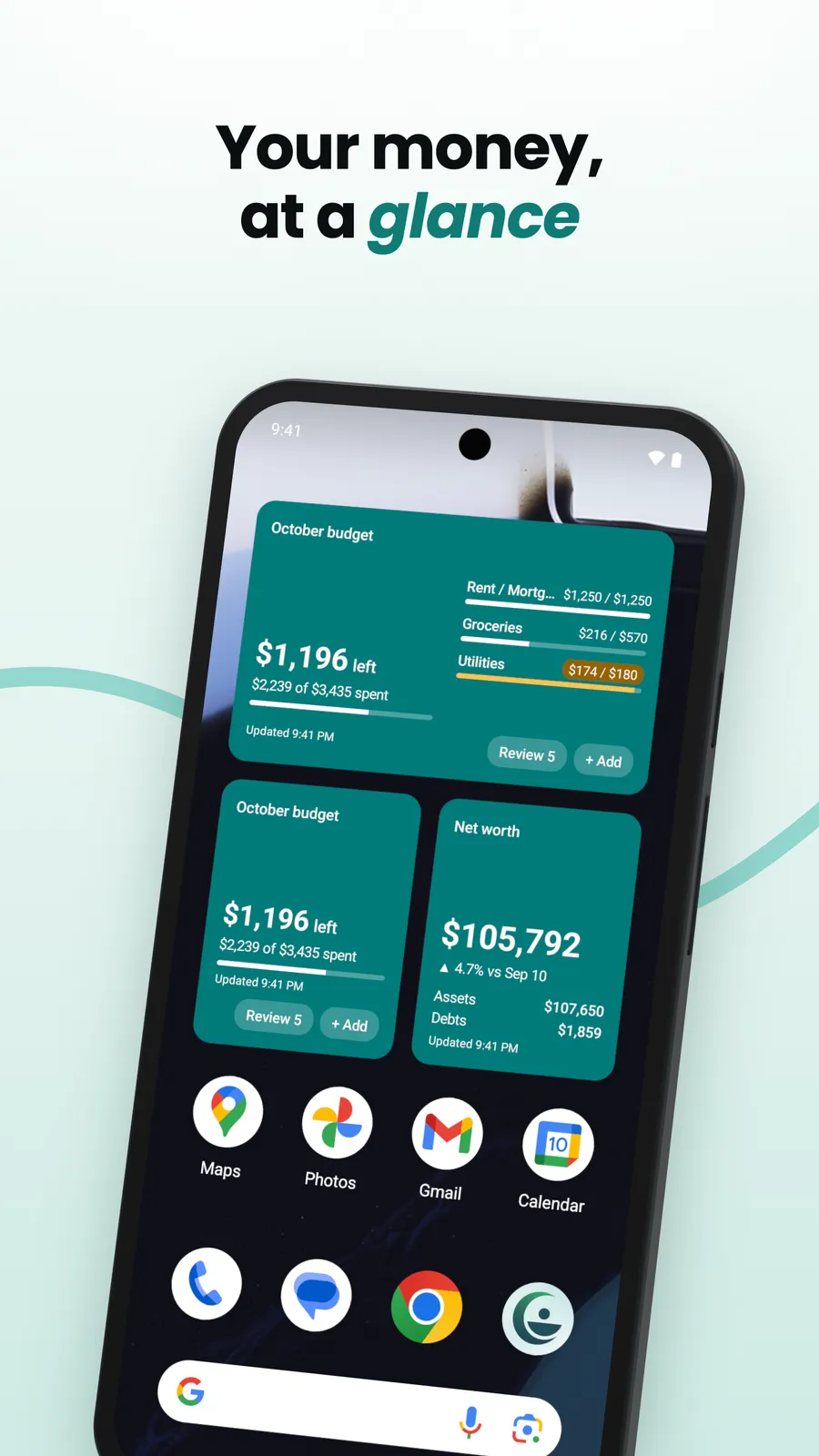
Home screen widgets
- Budget shows what’s left this month and your top categories, with Review and Add buttons right on the widget.
- Net worth shows your net worth and its change since last month.
- Upcoming bills lists recurring bills due in the next 30 days.
- Goals shows progress on your savings goals.
- Recent activity lists your latest transactions.
- Budget and Net worth start at 2×2, the other three at 3×2, and all can be resized.
- To add one: in Kove, open More, then Settings, then Appearance, and tap Add next to the widget. Kove asks your launcher to place it. You can also long-press an empty spot on your home screen, tap Widgets, and find Kove.
- Privacy: turn on Hide Amounts in Widgets under More, then Settings, then Privacy & Security, to show amounts as $••••.
App shortcuts
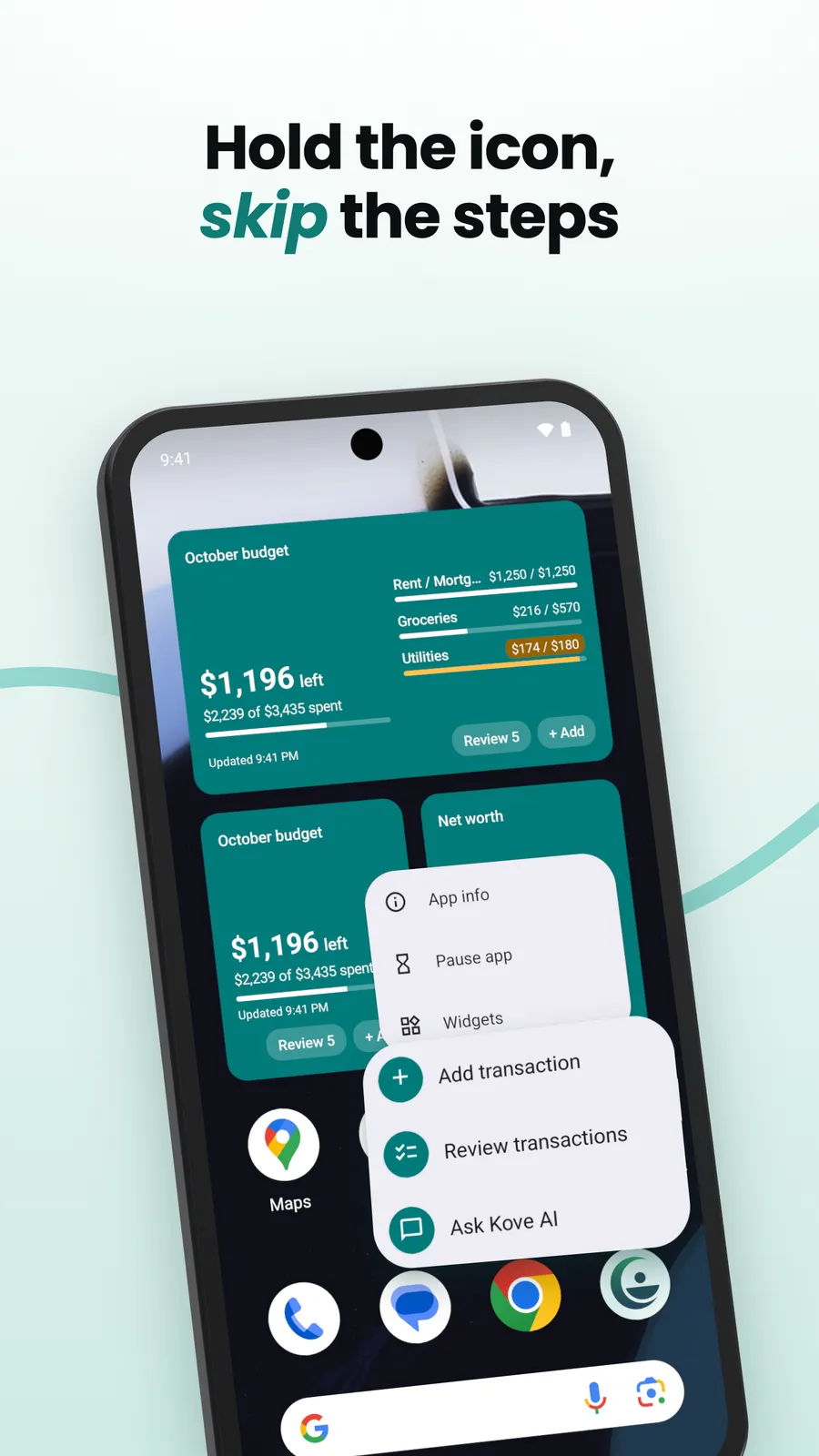
Long-press the Kove icon for three shortcuts:
- Add transaction
- Review transactions
- Ask Kove AI
Drag any of them onto your home screen to give it its own icon.
App Lock
Turn on Auto-Lock in More, then Settings, then Privacy & Security. Kove locks when you leave it, and you unlock with your fingerprint or face. While it’s on, Kove’s screen is hidden in Recents and screenshots of Kove are blocked. Auto-Lock needs fingerprint or face unlock and a screen lock set up on your phone.
Notifications
Each alert type has its own Android notification channel, so you can mute one, silence it, or change its sound in your phone’s Settings without touching the others. The alert types:
- Budget alerts
- Category overage
- Upcoming charges
- Transactions to review
- Unusual spending
- Bank connection issues
- Payment problems
- Goal milestones
- Long term budget reminders
- Student verification
- Tips and reminders
Frequently asked questions
Get Kove on your phone
Already have an account? Sign in with the same login on any device. Your plan covers all of them.
Using an iPhone? See Kove on iPhone.
Last reviewed October 2026.
Image credit: Mohamed Nohassi on Unsplash.