Guide
Kove on iPhone
Siri, widgets, Spotlight, and Face ID: how Kove works with the parts of iOS you already use.

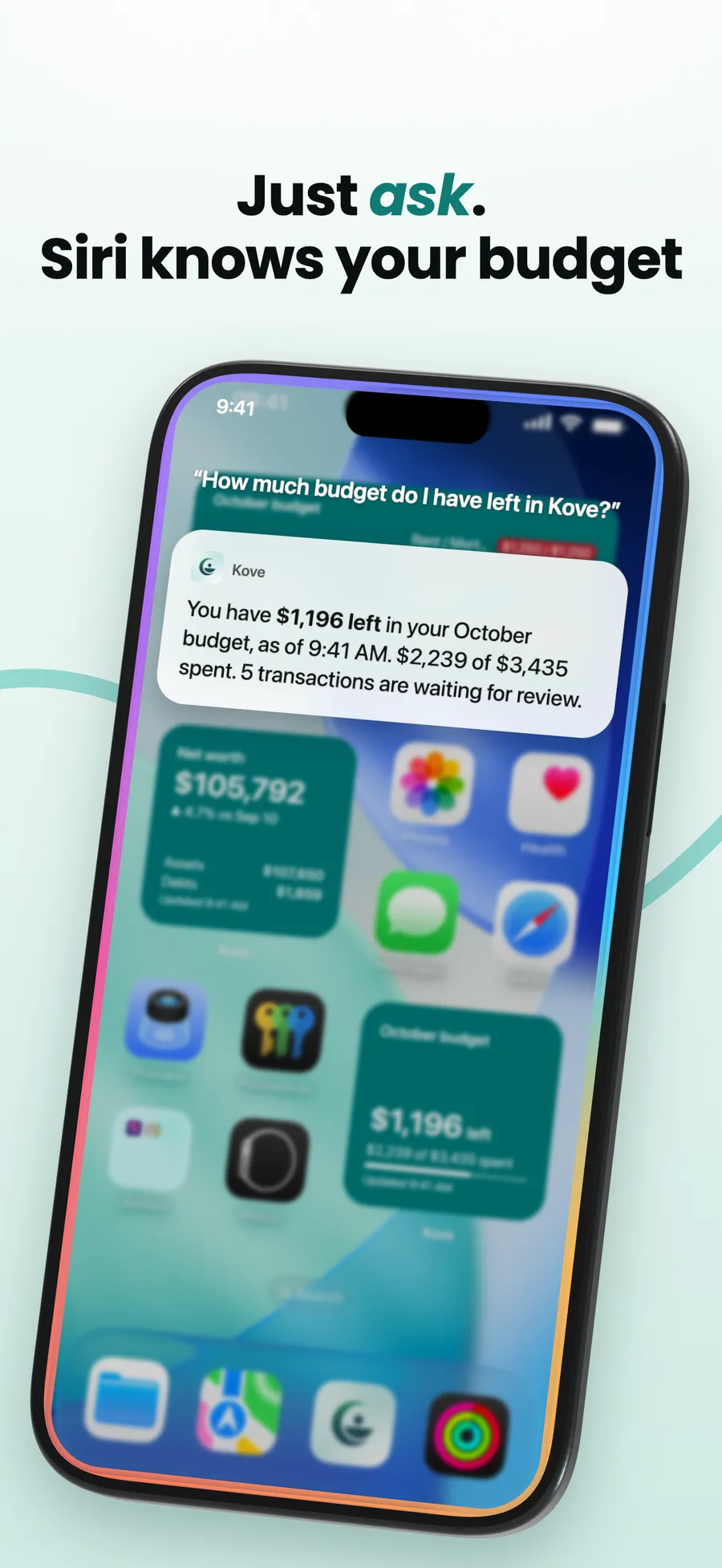
Ask Siri
Kove works with Siri and the Shortcuts app, with no setup. Once Kove is installed and you’re signed in, say any of these.
“What's my budget in Kove?”
How much is left in this month's budget
“What's left for groceries in Kove?”
What's left in one category, and in the budget overall
“How much did I spend this week in Kove?”
Your spending today or this week
“How much cash do I have in Kove?”
Cash across checking and savings, or one account's balance
“What bills are coming up in Kove?”
Recurring bills due in the next 7 days
“How are my goals in Kove?”
Progress on one goal, or a summary of all of them
“When was my last Target purchase in Kove?”
When you last bought there, and what you've spent there in the past 31 days
“What's my net worth in Kove?”
Your net worth and how it changed since last month
“Log a purchase in Kove”
Asks how much and where, then opens the add form filled in for you to check and save
“Edit my budget in Kove”
Opens the budget editor
The Shortcuts app also has an Add Transaction action that opens Kove’s add form. Every Kove action works in your own shortcuts and automations. Siri never changes your budget by voice: “Log a purchase” fills in the form for you to review and save, and “Edit my budget” only opens the editor.
Widgets
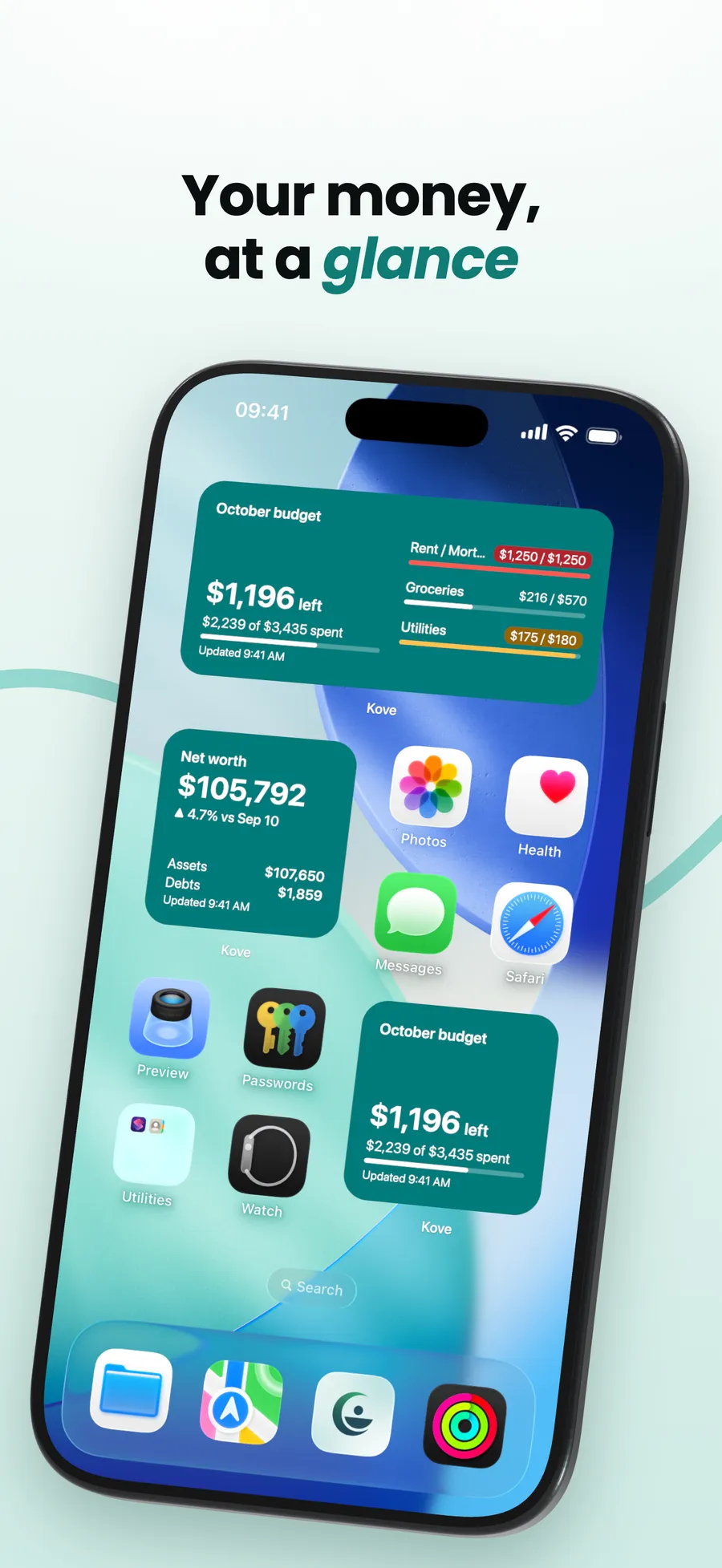
- Budget shows what’s left to spend this month. Small, medium, and large sizes for the Home Screen, circular and rectangular sizes for the Lock Screen.
- Net Worth shows your net worth and how it has changed.
- Upcoming Bills lists recurring bills due in the next 30 days.
- Goals shows progress on your savings goals.
- Recent Activity lists your latest transactions, in medium and large sizes. The others also come in small, medium, and large.
- To add one: press and hold your Home Screen, tap Edit, then Add Widget, and search for Kove. For the Lock Screen, press and hold it, tap Customize, then tap the widget area.
- Privacy: turn on Hide Amounts in Widgets under More, then Settings, then Privacy & Security, to show amounts as $••••. Lock Screen widgets always hide amounts while your iPhone is locked.
Spotlight search
Kove adds your budget, spending, accounts and net worth, goals, insights, investments, and retirement pages to Spotlight, along with your goals, spending categories, and the merchants you shop at most. Swipe down on your Home Screen and type “groceries” or a goal’s name to jump straight there.
Quick actions
Press and hold the Kove app icon for three shortcuts:
- Add transaction
- Review transactions, with how many are waiting
- Ask Kove AI
Face ID and Auto-Lock
Turn on Auto-Lock in More, then Settings, then Privacy & Security. Kove locks when you leave it, and you unlock with Face ID. While it’s locked, Kove also covers its screen in the app switcher. Auto-Lock needs Face ID and a device passcode set up on your iPhone.
Notifications
Choose exactly which alerts you get, each on its own switch:
- Budget alerts
- Category overage
- Upcoming charges
- Transactions to review
- Unusual spending
- Bank connection issues
- Payment problems
- Goal milestones
- Long term budget reminders
- Student verification
- Tips and reminders
Frequently asked questions
Get Kove on your phone
Already have an account? Sign in with the same login on any device. Your plan covers all of them.
Using Android? See Kove on Android.
Last reviewed October 2026.
Image credit: Tobias Röder on Unsplash.